

Models
You can also add other Luma image and video models yourself on the Models page.
Connect Luma AI
1
Create an API key
Sign in to the Luma developer platform and create an API key. These keys start with
luma-api-.2
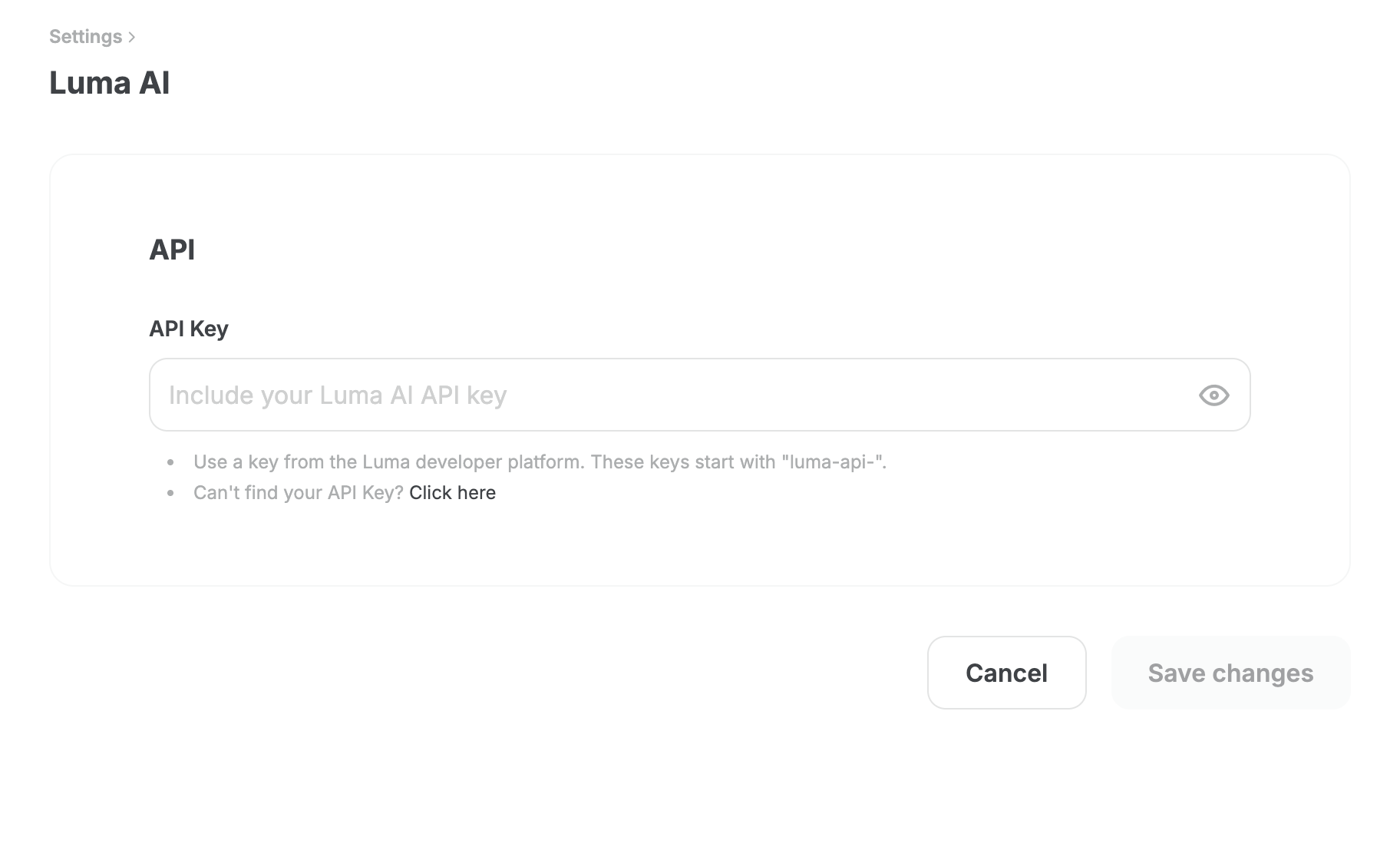
Enter the key in Aikeedo
Go to Settings → Luma AI, paste the key into API Key and click Save changes.
3
Switch the models on
Go to Settings → Models, filter by the Luma AI provider, check the prices and switch on the models you want to offer.
4
Check cron
Make sure the cron job runs every minute. Luma results are only picked up by it.
How results come back
Luma’s Agents API doesn’t send results to your site. Instead, the Read the results of Luma generations scheduled task checks unfinished generations every minute and saves the results.- Images wait in the request for up to 45 seconds. Any that aren’t finished by then are picked up by the scheduled task.
- Videos are always picked up by the scheduled task.
- Input images are sent to Luma inline, so Luma doesn’t need to reach your site, and local installations work too.
Pricing
The catalog lists Luma’s costs, at Luma’s $0.003 per Luma credit:
These are your costs. Users pay cost × markup × credits per USD, set on the Credit Pricing page.
Upgrading from 5.2
Aikeedo 5.3 moves from Luma’s retired Dream Machine API to the Agents API:- Enter a key from platform.lumalabs.ai under Settings → Luma AI. These keys start with
luma-api-. - Ray 2, Ray Flash 2, Photon 1 and Photon Flash 1 are switched off. Switch on Ray 3.2, Uni-1 and Uni-1 Max: they arrive switched off.
- The Luma webhook address,
/webhooks/luma/{id}, is removed. Nothing needs to reach your site any more.