

How usage becomes credits
Every model has one or more rates: a price per input token, per image, per second and so on. Each rate is priced from what the provider charges you:When credits are charged
- Chat and text are charged after the reply, for the tokens the provider reports.
- Images, video and other generations reserve their estimated credits when they start. When the result comes back, Aikeedo charges what the provider reports and releases the rest. If a generation fails, the reservation is released.
- Web searches, page reads and file reading are charged at their own rates. See Web Search & Web Pages and File Reading.
The balance check before a chat request
Before a chat request goes to the provider, Aikeedo works out what it could cost at most: the prompt and conversation history (counted as one token per four characters) plus a reply of 4,096 tokens. The workspace’s available credits must cover it. If they don’t, the request isn’t sent, and the user sees Not enough credits for this request: “Your balance is too low for this request with this model. Please top up.” Workspace members are asked to get the workspace owner to add credits instead. The check is skipped when:- Credit overuse allowance is enabled, so negative balances are allowed.
- The model has no price.
- The workspace uses its own API key for the provider (BYOK), so it isn’t charged.
- The plan has unlimited credits.
The check applies to chat. Images, video and other generations reserve their estimated credits before they start instead.
Where credits come from
- Plan credits renew every 30 days, for monthly, yearly and lifetime plans alike.
- Add-on credits (shown to users as usage credits) are bought separately, don’t expire, and are used after the plan’s credits run out.
When users run out
When a request hits a limit, the app opens a limit popup instead of an error:- Workspace owners see an upgrade to the next plan with its features, Buy usage credits where you sell them, Compare all plans and Model pricing. On the top plan, the popup says so.
- Workspace members see the same plan, without buy buttons, and are asked to have the workspace owner upgrade or add credits.
- A model that isn’t in the user’s plan shows “This model isn’t included in your current plan.”
- In session-based usage mode, the popup shows when the session resets.
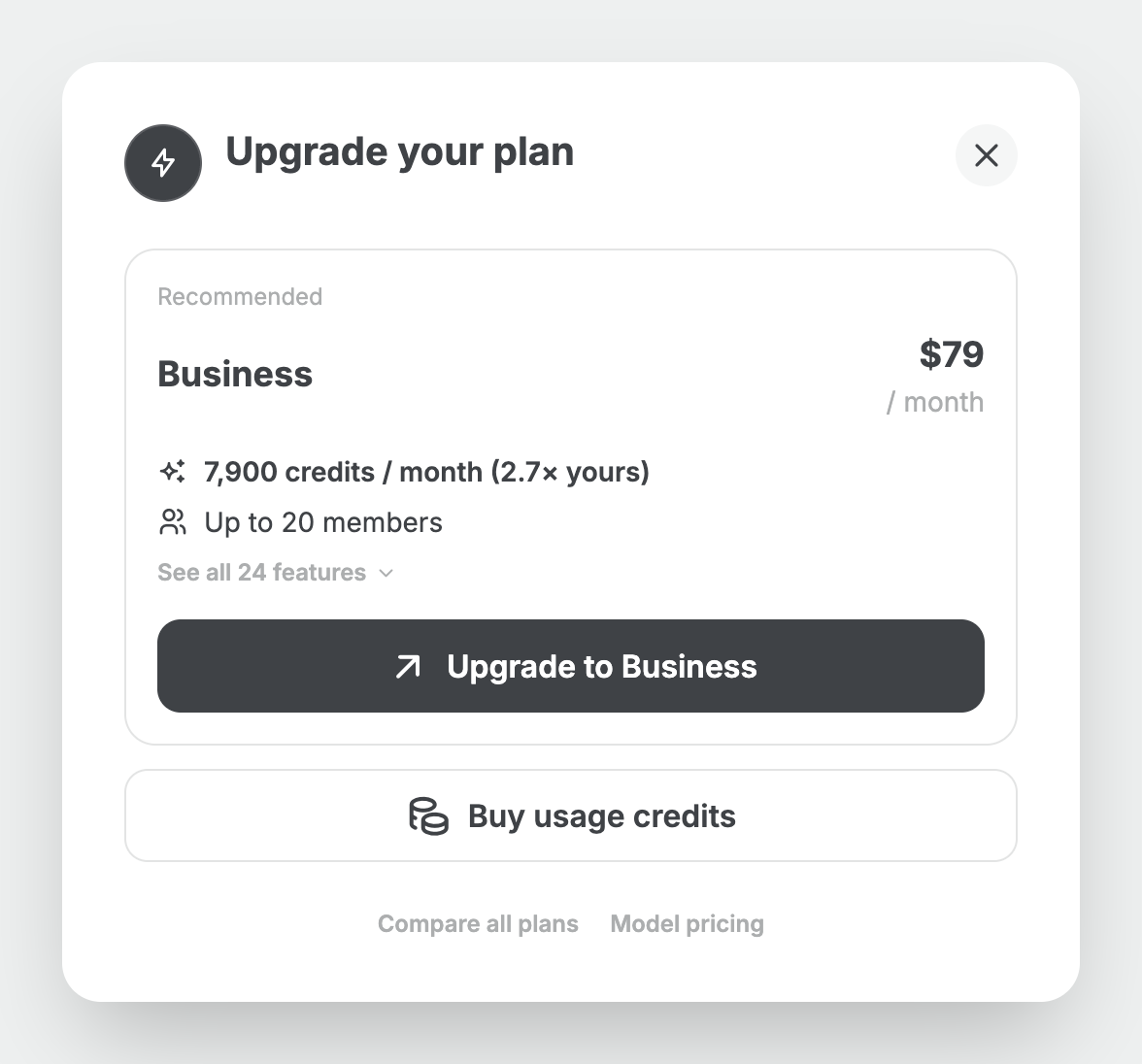
What users see
The Pricing page in the app lists what each model costs, in credits, by type. The Plans page links to it with See what each model costs. See What users see.Best practices
- Set credits per USD before you set plan credit limits, and don’t change it often: it changes what every credit a user holds is worth.
- Keep most models cost-based so they follow your markup, and use fixed credits where you want round, stable prices.
- After each Aikeedo update, check Price updates on the Credit pricing page and the Without a price filter on the Models page.
- Use the plan editor’s hint to keep each plan’s credit limit within what its price covers.