

Health checks look only at your own installation. They don’t call AI providers or other remote services, so they don’t report provider outages.
The System health card
The admin dashboard shows a System health card under Getting started.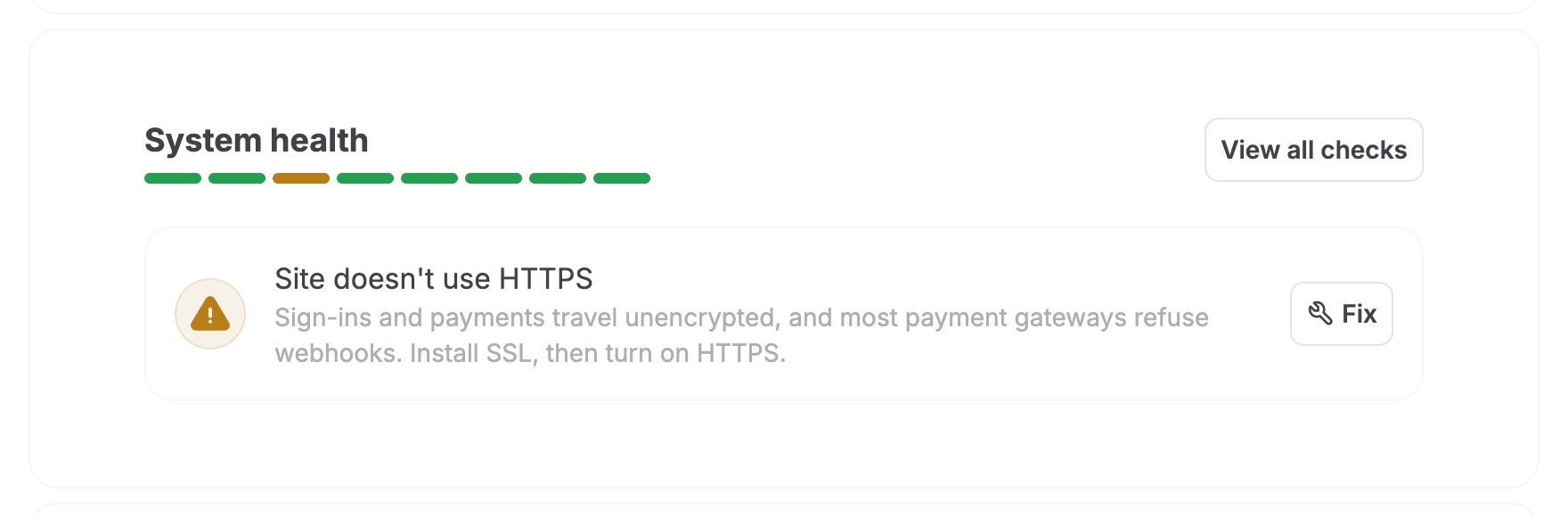
- One coloured indicator per check. Hover over it to see the check’s name and how many problems it found.
- The single most urgent problem, with a Fix or Learn more button.
- When nothing is wrong: All systems normal, or the number of suggestions on the Status page.
The Status page
Go to Platform → Status in the admin sidebar, or open/admin/status.
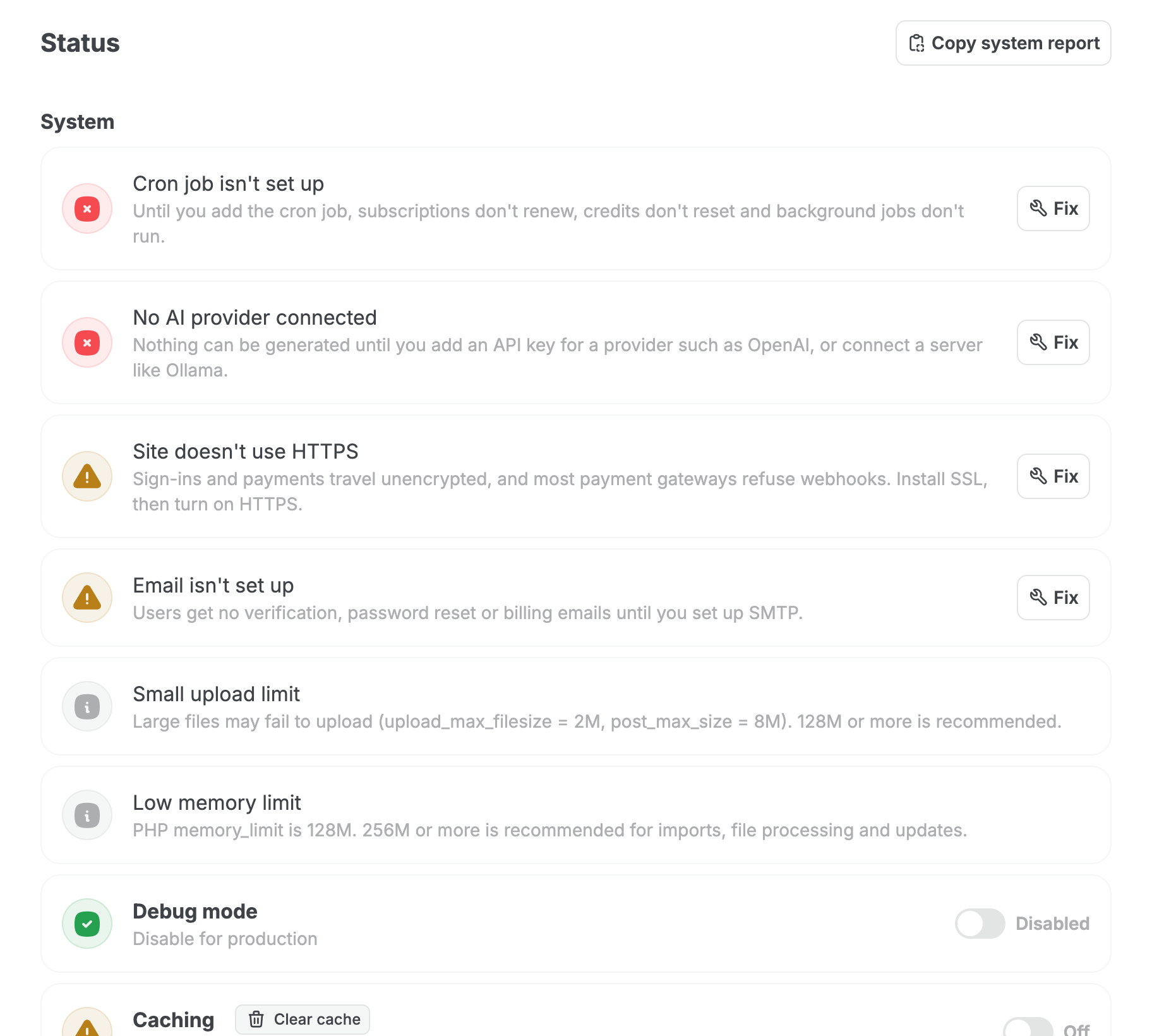
- Critical: something is broken or unsafe. Fix it now.
- Warning: something will cause problems or is about to.
- Info: a suggestion.
Copy system report
Click Copy system report to copy a plain-text summary of your installation: version, environment, PHP for the site and for cron, operating system, server, database, PHP settings, OPcache, missing extensions, cron, plugins, themes and the checks that failed. Paste it into a support request. The report holds no keys or passwords.What is checked
Plugins can add checks of their own.
Common fixes
Cron job isn't set up or stopped
Cron job isn't set up or stopped
Add the cron job to run every minute. Settings → System → Queue shows its status and the exact command to use. See Setting Up the Cron Job.
Cron runs a different PHP
Cron runs a different PHP
Your site and your cron job use different PHP versions, so background tasks may fail. Use the site’s PHP binary in the cron command.
Credit pricing not set
Credit pricing not set
Set Credits per USD under Settings → Finance → Credit pricing → Pricing settings. Until you do, only fixed credits charge users. See Credit Pricing.
Failed background jobs
Failed background jobs
Open Settings → System → Queue to see the failed jobs and retry them. See Background Jobs & Queue.
Encryption key missing
Encryption key missing
Run
php bin/console app:generate-key, then back the key up with your database. See Connectors.