

/admin/models.
Models has no item of its own in the admin sidebar. Open it from Settings. The old
/admin/settings/models address redirects to it.The Models list
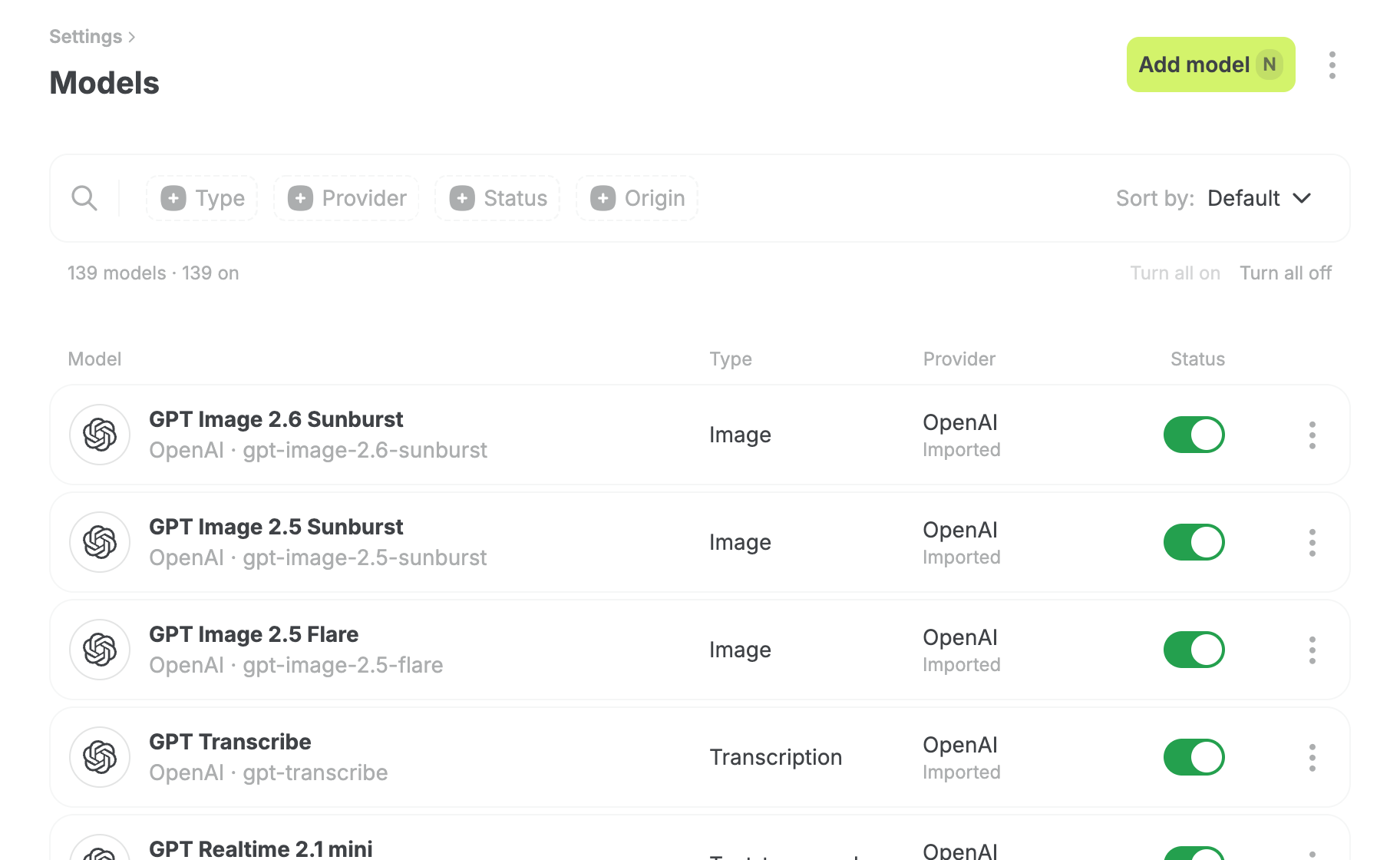
- Type: Text, Image, Video, Text-to-speech, Transcription, Embedding, Voice isolation, Voice cloning, Moderation and Capability.
- Provider.
- Status: On, Off, or Without a price.
- Origin: Built-in, Imported or Custom. See Where a model comes from.
- A red mark means Some rates have no price: users would use that part of the model for free.
- A discount mark shows the model’s discount, such as
-20%. - +N next to the provider means other providers are attached. Hover to see them.
- The model’s origin shows under the switch.
Where a model comes from
Every model has an origin:
Only Custom models can be deleted. Items already made with a deleted model stay in users’ libraries.
What updates do to models
- New catalog models arrive switched off. Updates add only each provider’s default models. The others wait in Import models.
- Models the catalog drops are switched off, not deleted, because library items and links still name them. An imported model is switched off once: if you turn it back on, it stays on.
- Retired models point to their successors. Old model ids keep working and resolve to the model that replaces them.
- Custom models are never changed, and a catalog model you deleted is not brought back.
Import models
Choose More → Import models to add the catalog models your installation doesn’t have yet. Models you already have are left as they are. A model you deleted can be imported again.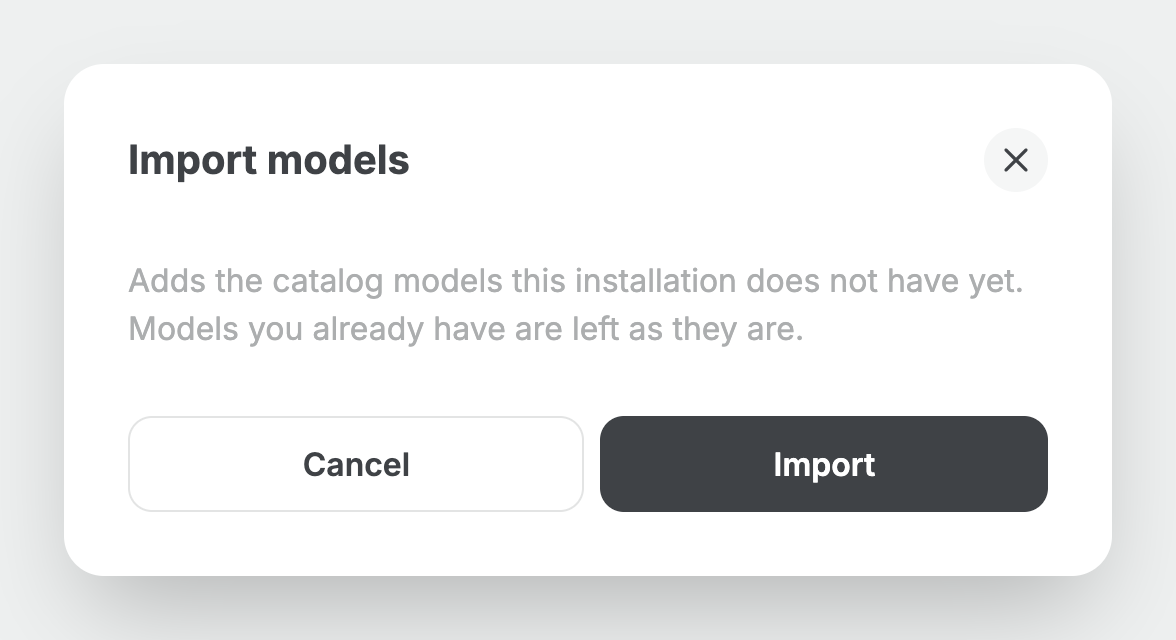
An OpenAI-compatible server’s catalog models can be imported only after you’ve added the server. See OpenAI API Compatibility.
Add a model
Click Add model, or open/admin/models/new.
You can add a model to any provider that lets you. Each provider supports these kinds of model:
ElevenLabs, Speechify, Azure, Google Cloud text-to-speech, Stability AI, ClipDrop and the web search and reader capabilities have built-in models only.
1
Choose the provider and type
Pick the Provider and the Model type. The type can’t be changed after you save.
2
Enter the API model id
The id requests send to the provider, such as
gpt-6.2-sol.3
Describe the model
Enter the Name users see, the Developer (who made the model, shown instead of the hub or server serving it) and a Description.
4
Set its capabilities and prices
Fill in the Capabilities or Parameters tab, then set its rates on the Pricing tab.
5
Save and switch it on
A new model is saved off unless you choose to turn it on.
Add a hub model
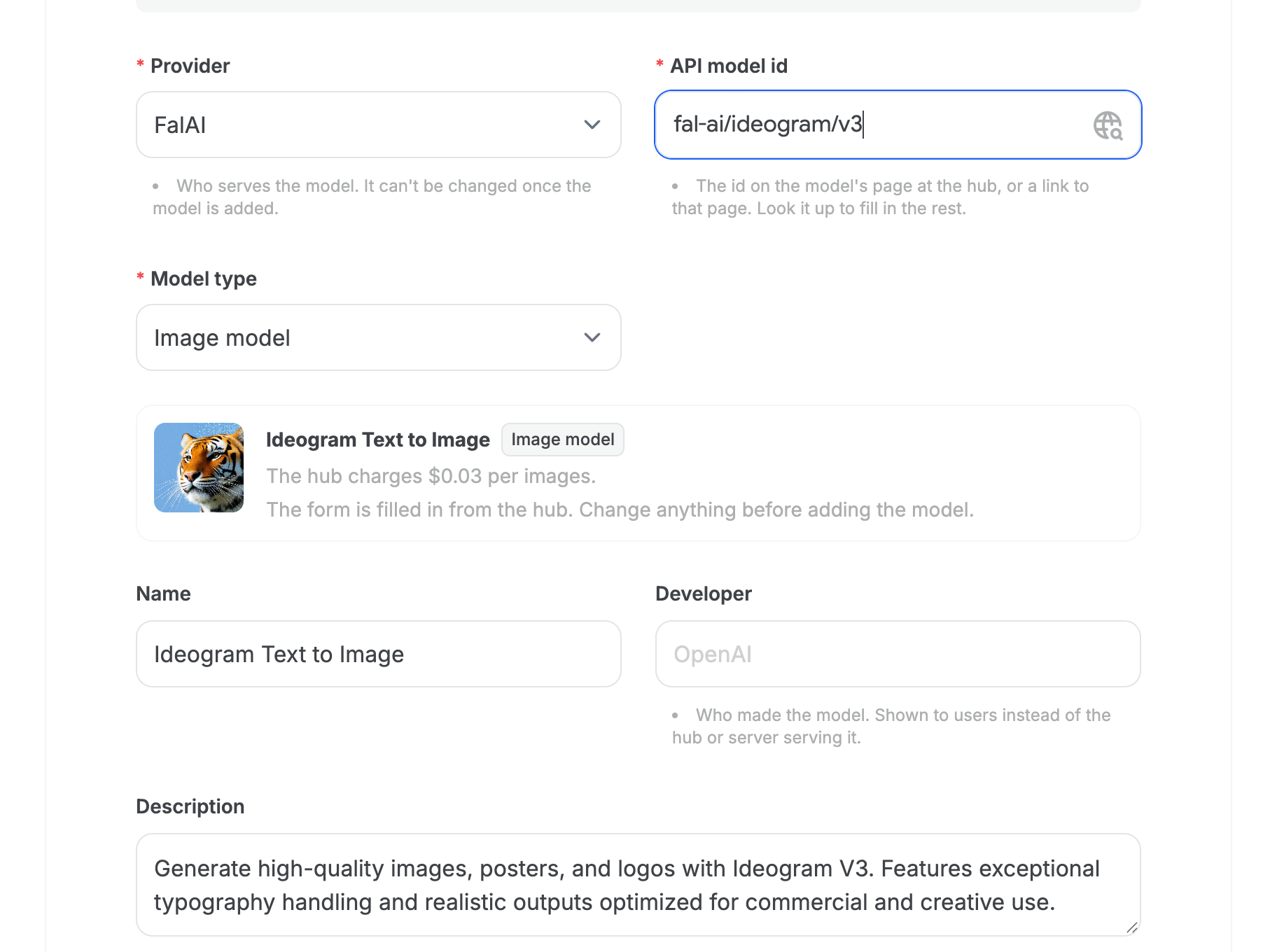
fal.ai and WaveSpeed host models from many developers. You can add any of them by id:- Choose the hub as the Provider.
- Type the endpoint or model id, or paste the model’s page link.
- Click Look up at the hub. The form fills in from the hub, including its parameters and price. Change anything before adding the model.
The model page
Open a model to edit it. The page has these tabs:General
- Status: On or Off.
- Provider, API model id, Model type, Name, Developer and Description.
- Labels: Deprecated, Preview and Turbo. Preview and Turbo show to users as badges.
- Danger zone: Merge a model in, Restore defaults and, for custom models, Delete model.
Capabilities
For types that have them, such as text models:- Features: Vision, Tool calling, Streaming.
- Reasoning: the Thinking mode (Adaptive, Extended, Optional or Intrinsic), with Budget tokens and Effort levels.
- Specs: Speed, Reasoning level, Intelligence, Context window, Max output tokens and Knowledge cutoff.
- Voices, for speech models.
Parameters
For image and video models. Parameters are the options sent with each request, such as the aspect ratio, resolution or duration.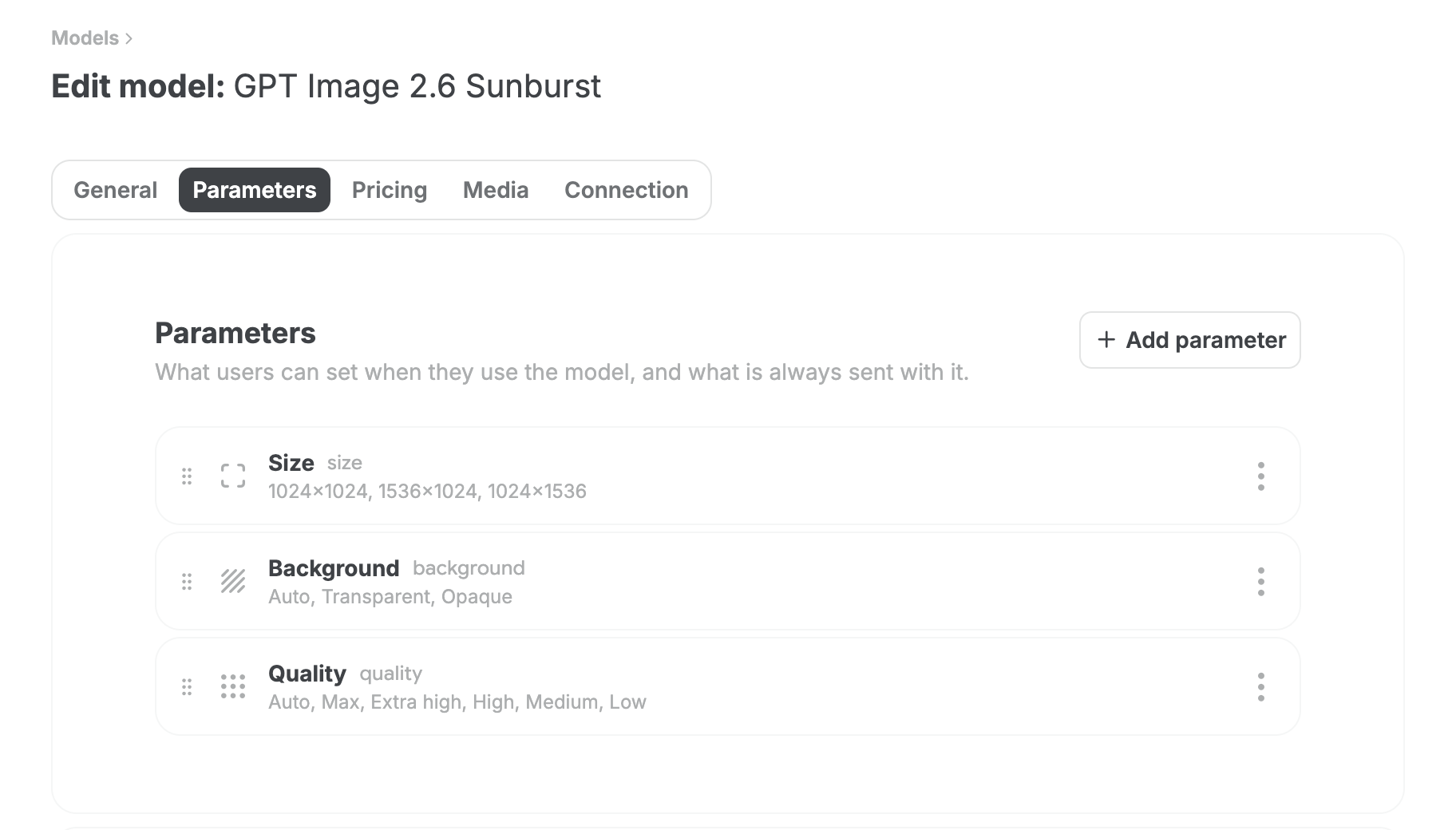
- Type: One of a list, On or off, or A number.
- Key: the name the provider reads, and Label: the name users see.
- For a list, each value: Value sent and Shown as. For a number: Minimum, Maximum and Step.
- Visible to users: users pick it when they use the model. A hidden parameter is a fixed value, Always sent as the value you set.
- Default, or The provider’s default.
Native providers such as OpenAI, xAI and Luma offer only the parameters their API reads. Built-in models show their settings read-only.
Pricing tab
Users pay what the provider charges you, plus your markup, in credits. The tab shows each rate, with the Markup field and a Provider prices link. A red* on the tab means a rate has no price.
See Credit Pricing for how rates, markup and fixed credits work.
Discounts
The Discount section takes a percentage off everything the model costs, on every plan. Users see the full price struck through next to the discounted one, on the Pricing page, in the image and video composers and in the model picker. Leave it empty or set it to 0 for no discount. 100 makes the model free. The discount also applies to the credits reserved before a generation.Media
- Preview: a wide 16:9 image or video (PNG, JPEG, WebP, GIF, MP4 or WebM) shown for the model.
- Hover preview: optional. It plays in place of the preview when users hover over it.
Connection
The model’s providers. The Model id is the id users and links know the model by. Hub models also list their Requests: the hub endpoints the model calls, and how it takes images.Several providers for one model
A model can be served by more than one provider, for example a Kimi model available on DeepInfra, Hugging Face and Together AI. One provider is active and takes the requests. The others wait, each with its own API id, settings, requests and rates. On the Connection tab:- Add provider attaches another provider. It waits until you make it active. Check its prices on the Pricing tab first.
- Make active switches the model to that provider. Its requests, settings and prices apply from then on. Aikeedo lists the settings that differ before you confirm.
- Remove provider detaches a waiting provider, along with its prices.
Merge models
If the same model was added twice, for example from two servers, merge them. On the model you want to keep, open Danger zone → Merge a model in and pick the other model. The picker lists likely matches first. The other model becomes one of this model’s providers. Its links, saved items, presets, plan access and default-model settings move to this model, and it’s removed.Restore defaults
For catalog models, Restore defaults puts back what the catalog defines: what the model can do, its settings and its endpoints. Its name, status, prices, markup, discount and media stay as they are.Related pages
Credit Pricing
Credits per USD, markup and fixed credits.
OpenAI API Compatibility
Add OpenAI-compatible servers and their models.